Sunday, September 19, 2010

Keep Track of Your Money With Online/Mobile Banking

You can send someone a picture from your phone, you can play music in your car from your phone, and you can go shopping from your phone.  So, how come you can't manage your bank account or pay bills from your phone?  Oh, wait... you can!  Welcome to the world of online and mobile banking.

If you still have to reorder checks and pay a small fortune for them, you're missing out.  If you have to call up your bank or drive to the closest ATM just to check your balance, you're missing out.  If I need to send a payment or transfer some funds, I do it from my computer... if I just need to check my balance or account history, I do it from my phone.  You can, too!  All you need is a bank account and a computer and/or phone.  Most banks have an online banking page, like Bank of AmericaKey Bank, and HSBC, that can get you started.

Pay Your Bills
What's you've signed up, you've already started saving money on stamps and gas... less checks to mail out and less trips to the bank.  With "Bill Pay," you can set up payees and schedule one-time or recurring payments to pay your car loans, credit card bills, or even your landlord.  Your bank will issue a check from your account and mail it to the assigned payee in the amount you specify.  Never worry about getting a payment out on time again!

Track Your Spending
With all your statements online, you can keep track of all your deposits and withdrawals in one place.  Use this to build a history of all your spending during the holidays and have a digital record to help balance your budget.  No longer do you have to keep receipts for petty spending, only keep them for possible returns.  With my bank, I can even set up alerts for when my balance hits a minimum amount or when a single transaction goes over a maximum amount (was nice to see an email when I bought my new washer and dryer).  Also, regularly checking your balance online can help against fraudulent charges... the sooner you report them, the better.

Go Mobile
Oh yeah, I get a text message whenever I spend more than $500, too.  I can even send a text message to my bank and they'll send me a message back with my balance or last 5 transactions.  Several banks are introducing apps for the iPhone, Android, and Blackberry, like Bank of America.  Several other banks are supporting mobile sites, like Key Bank.  Open up your phone and check your balance while in line for the checkout at the mall!

Online and mobile banking is one of the easiest ways to save time and money without even doing anything!  It's so easy to set up and so rewarding, you'd be doing yourself a disservice by not doing it.  Check it out... tell 'em Nick sent ya!

Thursday, September 16, 2010

Took Some Vacation Time...

As you've probably noticed, I've been away for a few weeks enjoying some much needed vacation time!  You can look forward to a couple articles this weekend to make up for my absence.  I'll be covering the benefits of online and mobile banking and try to help explain what all the fuss is about over these new tablet PCs that are popping up all over the place.  Speaking of which, check out the iPad-stomping Samsung Galaxy Tab that will hit the US this month:


See ya soon!

Wednesday, September 1, 2010

Apple Steps It Up... Again

Apple stepped it up at yet another press conference today by introducing some new products and much needed improvements:


iPod Nano gets Multi-Touch


iPod Touch gets FaceTime, Retina display, and HD video

Apple TV debuts at only $99


Social-networking with Ping and the new iTunes 10


Apple also decided to finally release a much needed update to the iPhone software with iOS 4.1, "coming soon."  Check out the site here.

Thursday, August 26, 2010

Goodbye Video Stores, Hello Netflix and Streaming

Still going to the video store for rentals?  Well, I hate to inform you but you're wasting time and money.  With technology tailoring towards mobile phones and streaming devices, the business of renting videos from stores is coming to a halt.  Luckily, there is Netflix.


What is it?
Netflix provides customers with video rentals without the return time-frame and per-video cost.  With a Netflix account, you can rent videos for as long as you'd like, as often as you'd like for only $8.99 a month.  A single video rental from a video store typically costs about $4.99 for only 5 days.  With Netflix, you receive and return all your videos by mail... well, besides the ones you stream instantly, but that's later in the article.


How does it work?
Once you set up a Netflix account, you can determine which plan you'd like.  The basic plan is $8.99 a month for one video at a time which gives you a DVD queue.  You sign in to the Netflix site and browse the DVD selection to start building your queue.


Once your queue contains enough videos, Netflix will ship the next DVD in your queue to your address in usually 1-2 business days.  Once you're done with the DVD, which can be whenever you like, you simply put it back in the envelope it came in and mail it back... done!  Netflix will receive the DVD in 1-2 business days, process it back into its inventory, and send you the next DVD in your queue.  It's that simple!


Instant Streaming
If you have a PC, you can stream videos instantly!  Simply browse the selection from within your Netflix account on your PC and click play.  You can also stream to a Netflix-capable device like the Sony PS3, XBox 360, or Nintendo Wii.  You request a streaming disc for these devices and it gets delivered just like a DVD but for you to keep.  You pop the disc in just like a game and off you go, ready to stream what's in your instant queue or browse through the instant selection.  By streaming your videos, you don't have to wait for your next video to arrive in the mail and you can stream a limitless amount of times.


That's Not All
As of today, you can now stream videos to your iPhone or iPod Touch!  The iPad was introduced with Netflix capabilities right from the start.  Simply download the Netflix app from your "iDevice" from the "iStore" and you're all set.  Also, Netflix has announced they plan to release an app for the Android Market, sure to please owners of the new Droid X.  Developers give a little something as well with RSS feeds for hooking into their queues, video reviews, and recommendations.  There are already tons of apps on the Android Market that use these feeds to let users control their queues right from there smartphones.


By the way, Netflix has Blu-rays, too.  They also have full seasons of TV shows, both for DVD, Blu-ray, and instant streaming.  It's an excellent way to catch up on your favorite shows without having to rent each disc separately from the video store.  That, or you could just wait for the re-runs and hope for the ones you want to see... not as fun.


So, if you don't have a Netflix account or you still drive aalllll the way to the video store, you're definitely missing out.  Streaming is the new renting.

Thursday, August 12, 2010

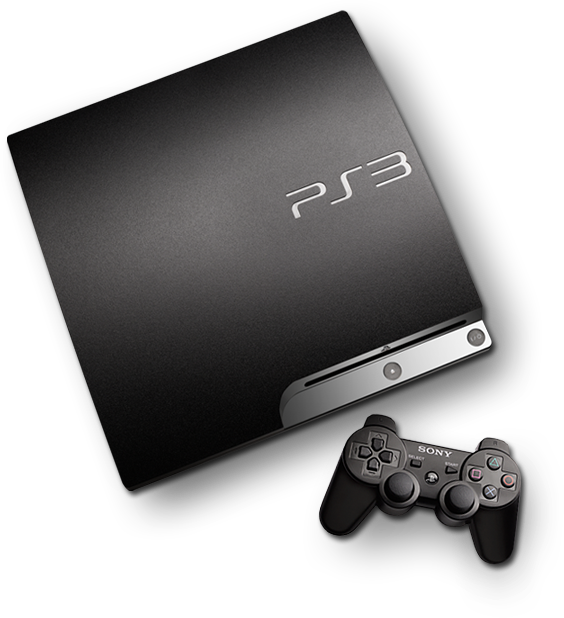
The Power of the Sony PlayStation 3

What if I told you that you can combine your CD, DVD, and Blu-ray players into one device and still get Wi-Fi, internet browsing, media streaming, and downloadable content on top of it?  Would you believe me?  Well, it's true... it's called the Sony PlayStation 3 (PS3).  Oh yeah, it's also the epicenter of high-definition video gaming!


Blu-ray
The PS3 is one of the first devices to support the Blu-ray disc, which provides for greater storage capacity than previous discs.  A single-layer CD holds 700MB, a single-layer DVD holds 4.7GB, and a single-layer Blu-ray holds 25GB.  So what does this mean?  With five times as much capacity as a DVD, a Blu-ray can hold the data needed for advanced video and audio codecs to provide a cleaner, more high-definition experience.

Internet Browsing
The PS3 has a web browser for cruising the internet both with and without wires, thanks to its built-in Wi-Fi.  Use it to get on Facebook, check out YouTube videos, manage your Netflix queue, sign in to your e-mail, or just go to your favorite URL.  You can switch back and forth between windows and even plug in a USB keyboard for faster typing.

Videos, Pictures, and Music... and Movies... and TV Shows


Rent your favorite movie or TV series in HD and stream it to your PS3 or buy it and download it to keep, all from within the PlayStation Store.  Save videos, pictures, and music to your PS3 from a USB drive, the internet, or the PlayStation store and play them back as a slideshow, playlist, or screensaver.  Don't want to store anything on your PS3 besides games?  That's fine, stream your media right from your computer!  Set up your computer as a media server and connect to it as if it were a folder on your PS3.  There's even a video editor so you can create your own videos and share them with your friends!

Demos and Add-Ons
Want to check out a game before you buy it?  Stream or download its trailer and check it out!  Really like it?  Download its demo right to your PS3 and play it until you're ready to buy it.  Now that you've bought the game, head to the PlayStation Store for add-ons to make the game that much more enjoyable.  Most add-ons include in-game items, more maps, or extended game modes to increase replay value.  Some games can even be purchased right from the Store and downloaded, installed, and have you playing in minutes.

The Gaming
The true purpose behind the PS3... the gaming.  Play video games in 1080p HD resolution to get the ultimate experience.  Play online with friends and everyone in the PS3 community.  Earn trophies for achievements in each game and compare them against friends to decide who truly is the best.  Really get in to your games with the PlayStation Move motion controller and PlayStation Eye.  Control your player by tracking your movement and actions and watch it happen in the game!  The controller lights up and vibrates as well to give you feedback for an even closer experience.  And to top it all off, Sony is already developing 3D games and has updated all PS3s with the software to play them... all you need is a 3D TV and you're playing in a whole new dimension.

Didn't know the PS3 could do all this?  I don't blame you... there's a lot going on!  At only $299, you're getting a CD player, DVD player, Blu-ray player, internet browser, media player, video game console, and practically a computer all for the price of a regular Blu-ray player.  Yeah, Sony was actually losing money on the PS3 for a few years by pricing it so low.  Now they sell the PS3 in a slim console and are selling them for even less!

I hope I've shown some light on the amazing technology that is the PS3 for you.  And if you're one of the few that have yet to get on-board and I've inspired you, let me get you started:


Sunday, August 8, 2010

10 Must-Have Apps For Your Android Phone

Looking to get the most out of your Android smartphone?  I've come up with a list of ten must-have apps from the Android Market that will get you started!

10 Android Apps

Wednesday, August 4, 2010

Sync Your Smartphone With Your Computer's Music

So you've just picked up your shiny new smartphone with a built-in music player and you're ready to ditch your old iPod for this all-in-one device.  But where are all your songs?  On your computer!  I'll walk you through how to sync your new smartphone with existing music on your computer.  For this walk-through, I'll be using my Motorola Droid and Windows Media Player on Windows 7.

Step 1:  Getting Connected
Rescue your smartphone from your overprotective rubber sleeve and plug it in to your computer with your phone's USB cable.  Your phone should recognize it is connected and may prompt you before mounting to your computer.  Next, open up Windows Media Player and head to the Library.  You should see your device in the Sync tab!


Step 2:  Choosing Your Music
Now that your phone is synced, you simply drag and drop items from your library into your sync list.  It's that easy!  You can do several songs at a time, a whole album, or even a whole playlist!  Keep going until you're happy or run out of music, whichever comes first.  (Running low?  Try a little Stairway To Heaven!)


Step 3:  Sync It!
You've connected your device, selected your music, and set up your sync list.  All that's left to do is sync it!  Click Start Sync above your sync list and you'll see the syncing progress begin.  Once it's done, you're done!


Just keep in mind that your phone is still mounted to your computer.  You have to unmount it for the data to be written to your phone... until then, it's in limbo.  Once it's disconnected, you'll have music galore right in the palm of your hand, ready to fight back against that one co-worker that refuses to wear headphones while listening to weekly webinars on "How to Get Rich Quick!"


Try it out, mess with the settings, play around to see what options do what... that's how you learn and get familiar with it.  I hope this helped make your music listening a little bit easier!